 Claude by Anthropic
Connect TrainerDay to Claude
Manage your training with AI. Works with claude.ai, Claude Desktop, and Claude Code.
Setup as a Custom Connector
Log in to TrainerDay First
Sign in at trainerday.com in your default web browser. The last setup step opens TrainerDay there, so being logged in makes it a one-click approval.
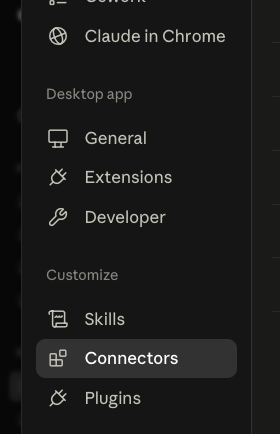
Open Settings → Connectors
In the Claude Desktop app or on claude.ai, click your profile icon, then Settings, then Connectors.
Add Custom Connector
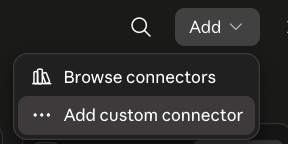
Click Add in the top-right corner, then choose Add custom connector.
Enter the TrainerDay Server
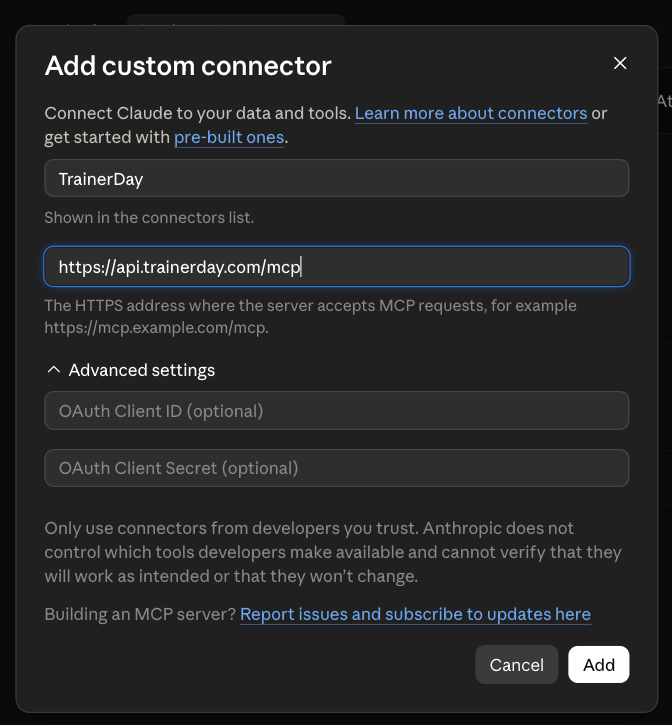
Name it TrainerDay and enter the URL https://api.trainerday.com/mcp. Leave the OAuth Client ID and Secret fields empty — they're not needed. Click Add.
Authorize Access
Claude opens TrainerDay in your browser to approve access to your calendar and athlete data. Select the permissions you want and click Allow.
Start Training with AI
That's it! Ask Claude things like "What's on my training calendar this week?", "How is my training load trending?" or "Add a 1-hour endurance ride to next Monday."
What You Can Do
Once connected, Claude can read and manage your TrainerDay data: